
A new year in the trade starts with new stock, new designs and new hopes for the season ahead. This year, it starts with new looks too.
From today, the Look Store is open in Studio. It is a library of ready-made looks for your product photos: eleven scenes, from pure studio white to bridal red silk, each written for eight kinds of piece. Choose one, try it on your own piece, and make a whole catalogue in it.
This guide is for any jeweller who photographs pieces on a phone and wishes the photos looked like a catalogue. The short answer: take a plain photo of the piece, choose a look, and let Studio make the catalogue image. Your piece stays exactly as it is. Only the scene around it changes.
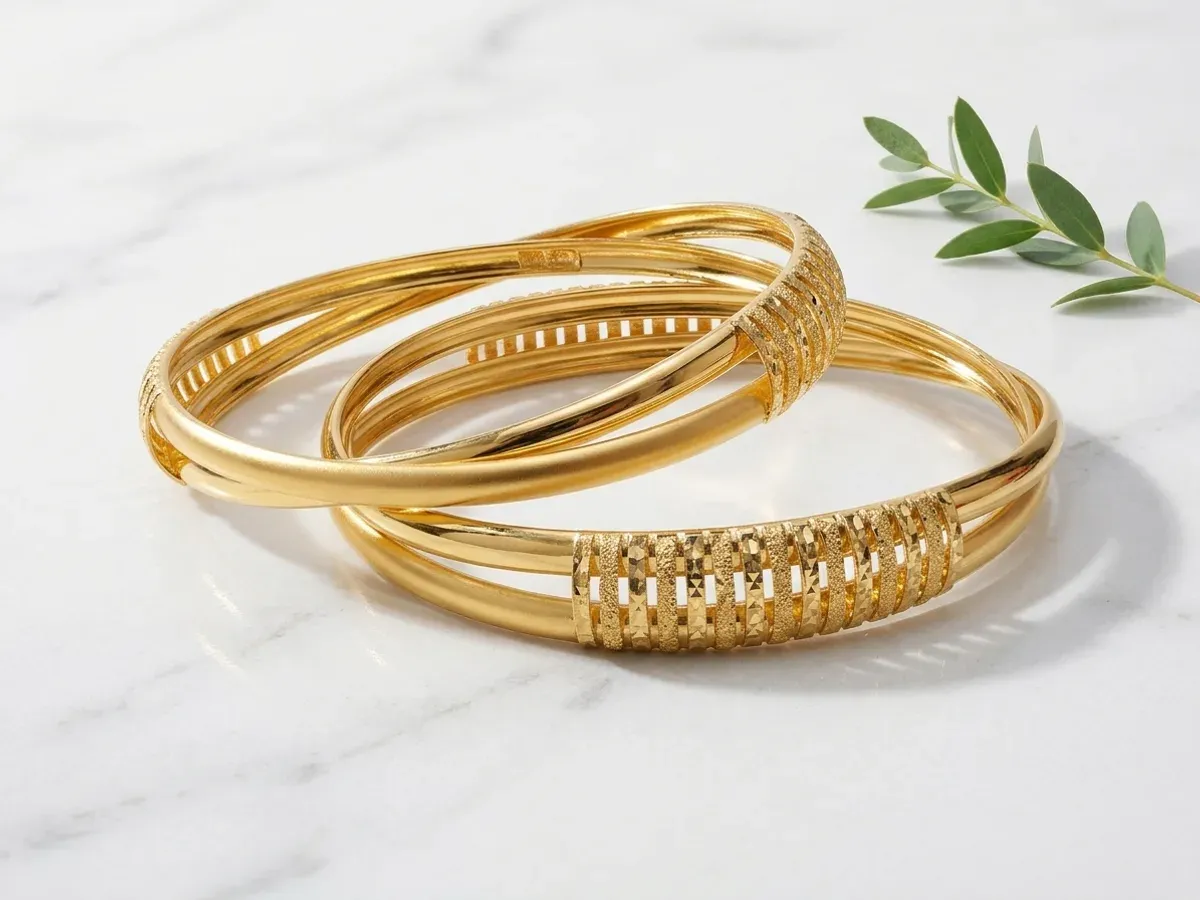
A phone photo on the counter, and the same pair in the Fresh Marble & Green look.
Start with a good phone photo
Studio works from your photo, so a better photo gives a better image. You don't need a studio. You need five habits.
- One piece, or one set, per photo. A necklace and its earrings together is fine. Three trays of bangles is not.
- A plain surface. A white sheet of paper or a plain counter works best. Busy patterns confuse the scene.
- Soft, even light. Daylight near a window beats shop spotlights. Avoid harsh shadows across the piece.
- Fill the frame. Hold the phone close enough that the piece takes up most of the photo.
- Shoot the angle you want to sell. Studio keeps your camera angle. It will not turn a piece to show its other side.
Step 1: Find a look
A look is the scene your piece is photographed in: the surface, the light, the mood. Open Studio, which now has its own place in the sidebar, and press Looks next to the +.
The Look Store opens over your collections. At the top is a shelf of looks for the season. Below is every look, yours first, then UJI's. Search by occasion or material ("Diwali", "marble", "velvet"), or filter by piece type and occasion.
Looks are written for each kind of piece. A bangle sits differently from a necklace, so most scenes come in a version for each: necklace, bangles, earrings, pendant, mangalsutra, ring, anklet and waistband.
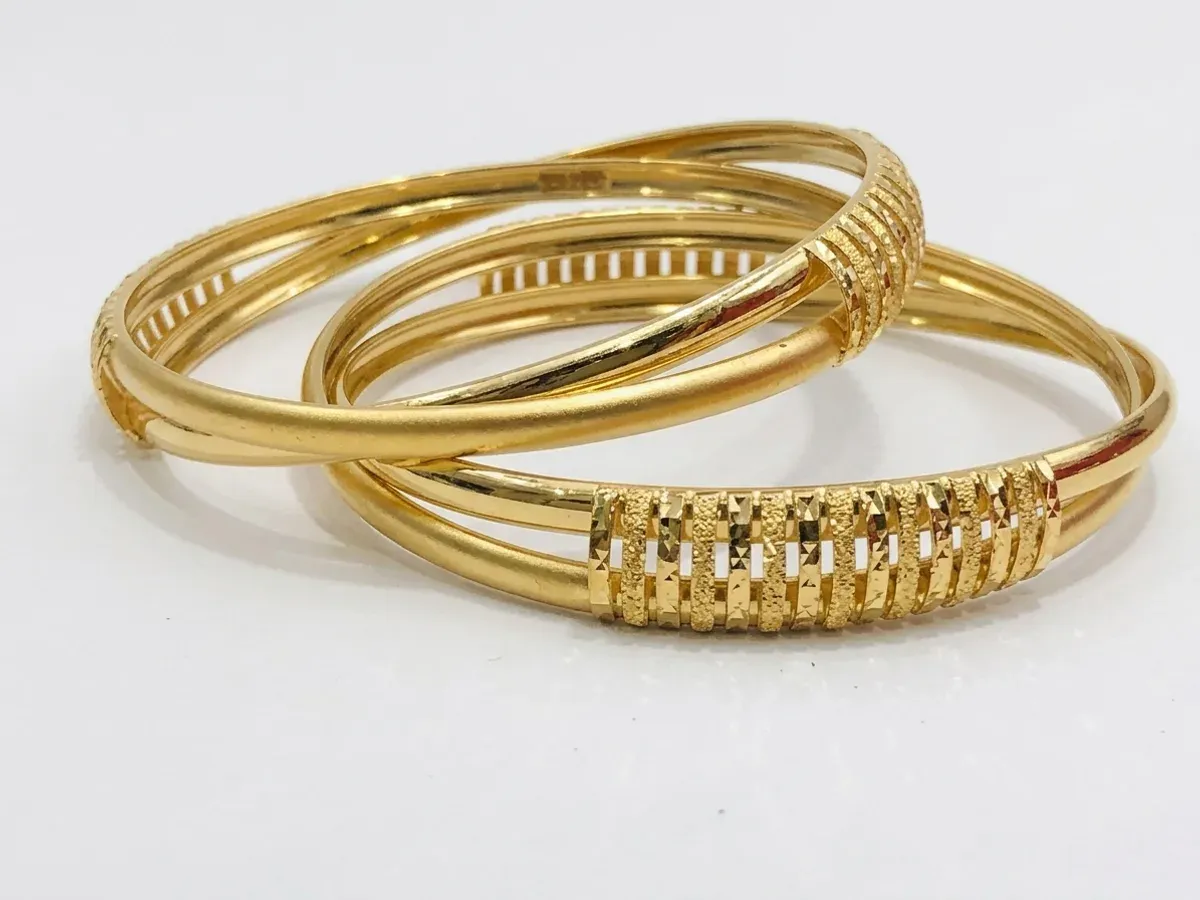
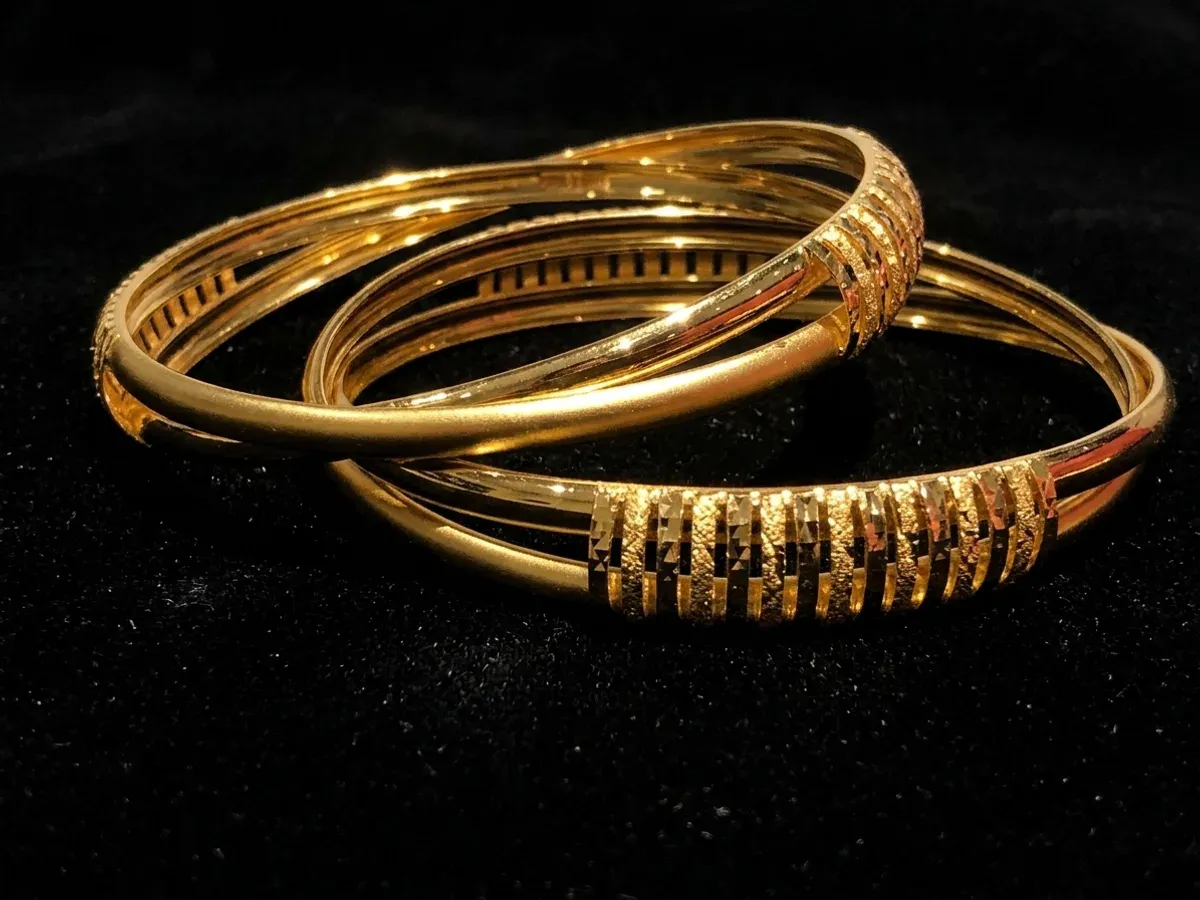
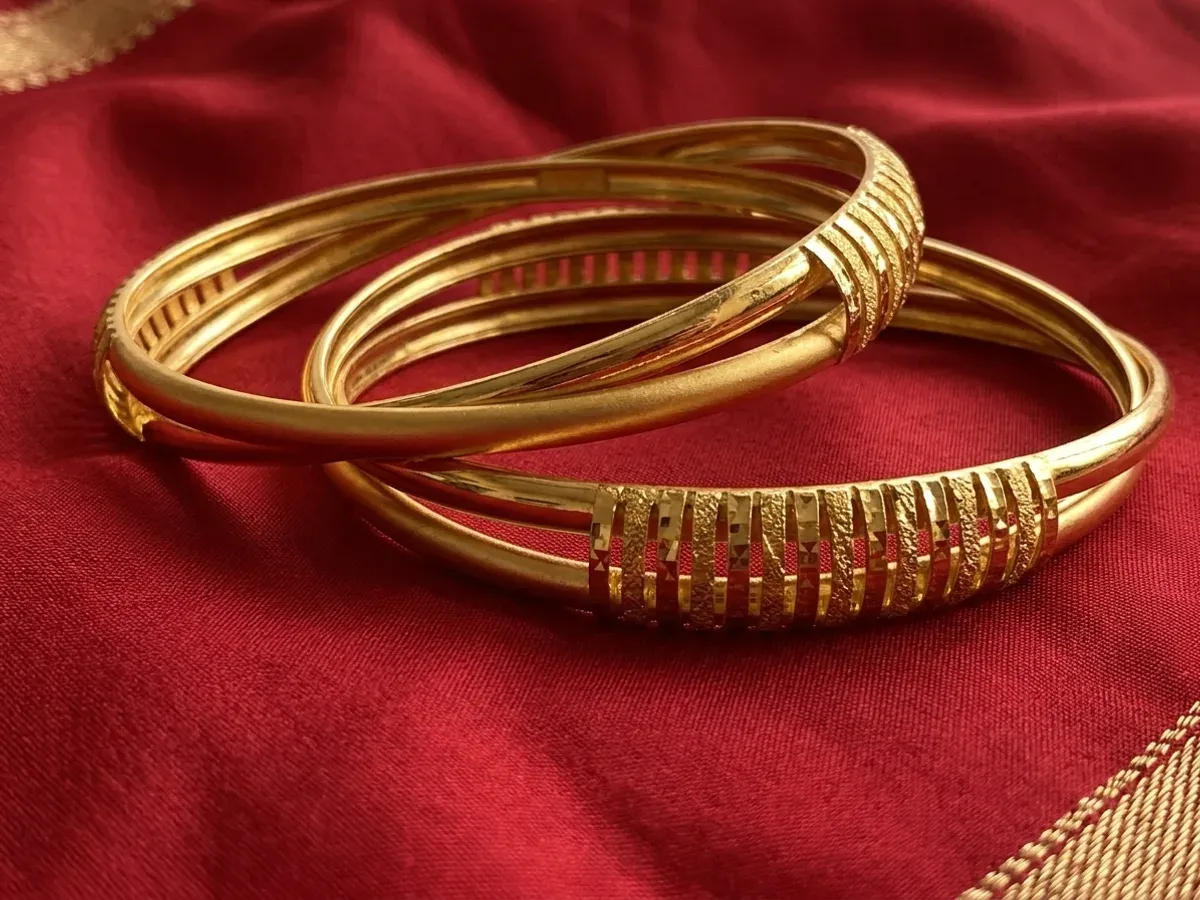
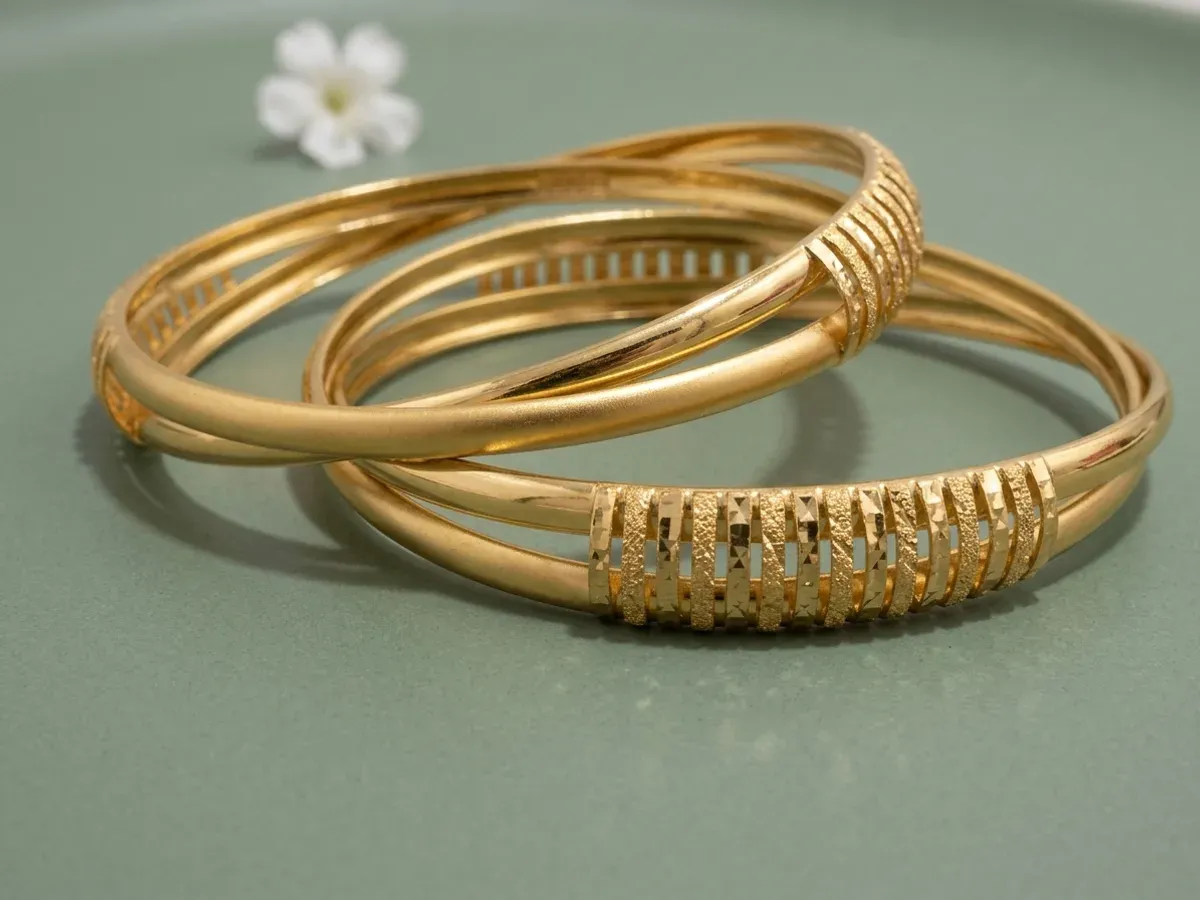
One pair of bangles, four more looks: Soft Studio White, Black Velvet Luxury, Bridal Red Silk and Sage Ceramic.
A few rules of thumb help you choose:
- For a website or marketplace, choose a clean look such as Soft Studio White. Every piece then sits on the same background.
- For Instagram and WhatsApp, choose a scene. Marble, velvet and silk catch the eye in a feed.
- For a festival or the wedding season, choose the look made for it. The season's shelf at the top of the store is the quickest place to start.
Step 2: Try it on your own piece first
Before you make a whole collection, see the look on your own work. Open any look to see its details, choose your piece type, and press Try on my piece.
Pick one of your photos, or add a new one. Studio makes a single image of that piece in that look. Press and hold Hold to compare to see your original photo again, and Download to keep the try.
A try costs one image and adds nothing to your library. It is the cheapest way to be sure before you commit a batch.
Step 3: Make a look your own
Every UJI look can become yours. Open it and press Make it mine. You get your own copy to change, and UJI's original stays as it was.
Or press New look and describe the scene in your own words. A few things make a look work:
- Describe the scene, never the piece. Write about the surface, the light and the mood. Don't write "22K gold necklace". Your photo already shows the piece, and describing it invites changes to it.
- Count your props. Write "one small brass diya", not "diyas". An uncounted prop multiplies.
- Keep props small and behind the piece. Nothing should touch or cross it.
- Leave out coins, notes and idols. They come back with markings no one can read and no shop should print.
- Keep it short. Two or three calm sentences beat a paragraph.
Here is a look that follows every rule:
Pale marble in soft morning daylight, with one sprig of green leaves at the far edge. Calm and airy. Keep any props small and well behind the piece.
Save it, and it sits in your library for everyone in your team to use.
Step 4: Make a collection
A collection is one batch of pieces in one look. Press Use this look on a look's page, or + in Studio, and fill in four things:
- A name, such as "Wedding season bangles".
- What's in it. Choose the piece type, so Studio stages each piece properly: bangles on a wrist, a necklace on a bust.
- The shape. Square for marketplaces, Instagram (4:5) for posts, Story (9:16) for status updates, and seven more.
- The detail. From 512px for quick WhatsApp shares to 4K for print. Each level shows its price per image before you choose.
Then add your photos. You can also make the collection with just a name and add photos later.
Step 5: Add your logo
Open the collection's Settings to place your logo. Choose a corner or the centre, a size and a strength.
Leave colour on Auto. Studio keeps your logo's own colours and changes them only where they would disappear, such as a dark logo on black velvet. Choose White or Black if you want one colour on every image.
Step 6: Generate, check and download
Press Generate. The price for the whole batch is shown before you start, and you pay only for the images that come out.
When the batch is done, look at every image before you send it, the way you would check a piece before it leaves the shop. This is new technology. Most images keep the piece exactly as it is, but sometimes a detail changes or the piece turns.
If one isn't right, make that image again from its tile. You get a new image, not a touched-up copy of the old one, and the price is shown first.
When you are happy, press Download all to get the whole collection as one zip, ready to post.
Getting the most out of Studio
- One look per collection. A catalogue looks finished when every piece sits in the same scene.
- New season, same photos. Keep your plain phone photos. When the wedding season starts, add them to a new collection in a wedding look. There's no need to photograph the pieces again.
- Try before every new look. One try costs one image. A wrong batch costs many.
- Archive what you're done with. Old collections move to Archived, out of the way but not deleted.
Why it lives in UJI
Studio could have been a separate app. It isn't, because a photograph belongs with the piece: next to its weight, its purity and its HUID, in the same place your team already works.
Studio is part of Pro, priced per image, and every price is shown before you spend it.
From all of us at UJI, a happy and prosperous New Year.